FAQ

How to leave a review for File 365 in the AppExchange

1 min readUpdated 3 March 2025
More in FAQ
  1. How to upgrade your File 365 package in the AppExchange
  2. How to leave a review for File 365 in the AppExchange
  3. How to assign a File 365 license to a user
  4. How to renew your Client Secret of File 365 App Registration
  5. Grant Login Access
  6. Is File 365 suitable for me as a Salesforce and Microsoft 365 user?
  7. Where are my files stored with the File 365 Salesforce SharePoint integration app?
  8. Is there a storage limit?
  9. Will documents stored in SharePoint also be displayed in Salesforce?
  10. Is the file I open in Salesforce the same file as the file in SharePoint?
  11. Which Salesforce editions can be used?
  12. How do folders get the correct name in SharePoint?
  13. How long does it take to process data in SharePoint?
  14. Do I need to purchase a license for every Salesforce user?
  15. Is it possible to adjust the number of users up or down?
  16. How to cancel your File 365 Subscription via the AppExchange
  17. FILE 365 LICENSE AGREEMENT
All articles in FAQ

By sharing your experiences in the AppExchange, you not only help us improve File 365 but also assist fellow Salesforce users in discovering a tool that can significantly enhance their file management workflows.

Your insights can guide others towards a solution that saves time, boosts productivity, and maximize return on investment in Salesforce. Join us in creating a more efficient and effective Salesforce ecosystem by leaving your review today!

Writing a review is very easy and takes only a minute.

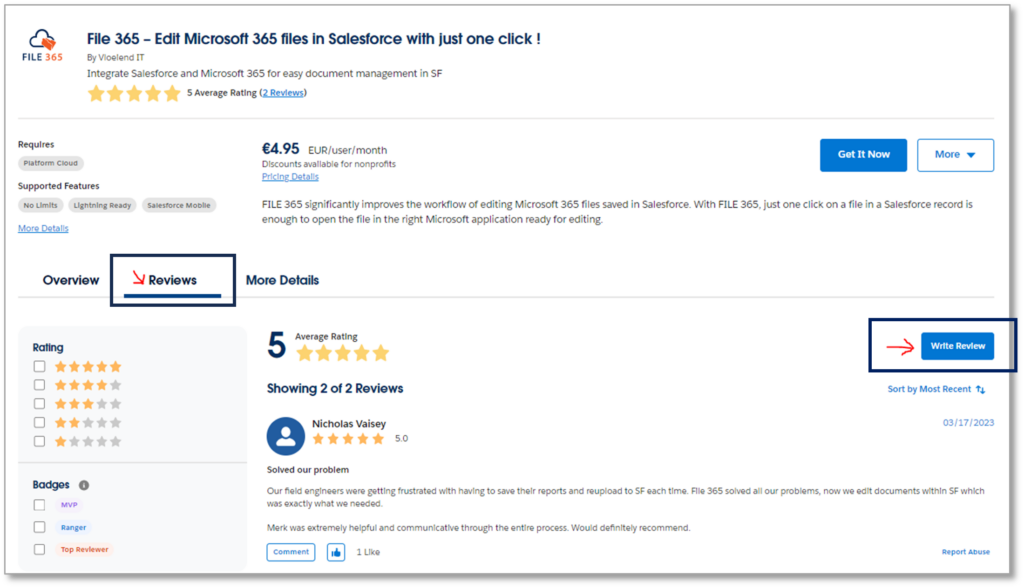
  1. Please go to this link to go to directly to the Reviews tab in the File 365 listing.
  2. Select Write Review. If you have not logged In, please log in.
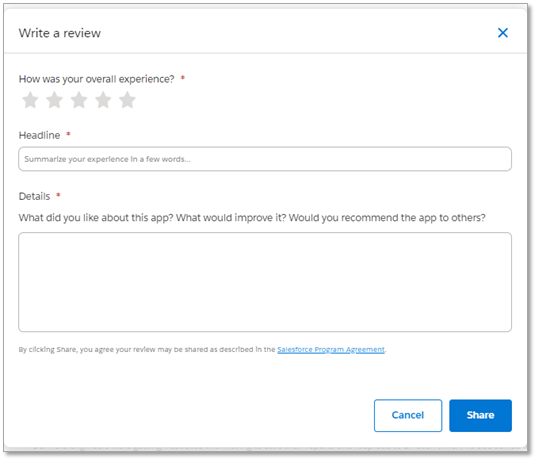
  1. Enter your review and click Share.

Was this article helpful?

Need more help?

Our support team is happy to help.

Contact support